
Project Creation for Teams
Creating a project in Taskee is the step where a piece of work gets a home, a team and a place in the sidebar. A new account starts with a default project so there is somewhere to put the first task immediately. After that, projects are created from the drop-down beside the Create Task button or from the plus sign on the projects page, and they can be grouped — by client, by department, by year, by whatever distinction your team actually uses. Projects that belong to no group are collected automatically in the No-Group Projects folder rather than disappearing. People are added in the Team section of the creation or editing screen, through search and a pop-up, and projects appear on the sidebar grouped the same way, where they can be moved and reorganised as things change. This page shows each step in the interface, who needs the grouping and who does not, and where creation ends and ongoing project management begins.
Why the first five minutes of a project matter Link copied!
Project setup is the least interesting part of any work tool and the part that quietly decides whether people will use it. Three decisions get made at creation time and are expensive to change later: what counts as a project, how projects are grouped, and who can see them.
The first one causes the most trouble. Teams that make a project out of every small piece of work end up with a sidebar nobody can scan and no place where related things sit together. Teams that make one enormous project out of everything lose the ability to say anything useful about a client, a quarter or a product line, because every report covers all of it. A reasonable rule: a project is something that has its own deadline, its own team and its own definition of done.
The second decision — grouping — is the one that keeps the sidebar readable once there are more than a handful of projects. The third is access: adding people at creation means the project is usable by its team from the first task, instead of the first week being spent on requests for access.
Taskee is deliberately forgiving about all three. Groups can be created and reorganised later, people can be added to an existing project as easily as to a new one, and a project that ends up in no group is not lost — it is collected in a folder of its own.
Create a project Link copied!
After signing up on Taskee, you automatically get your first default project. It helps to introduce you to the platform.
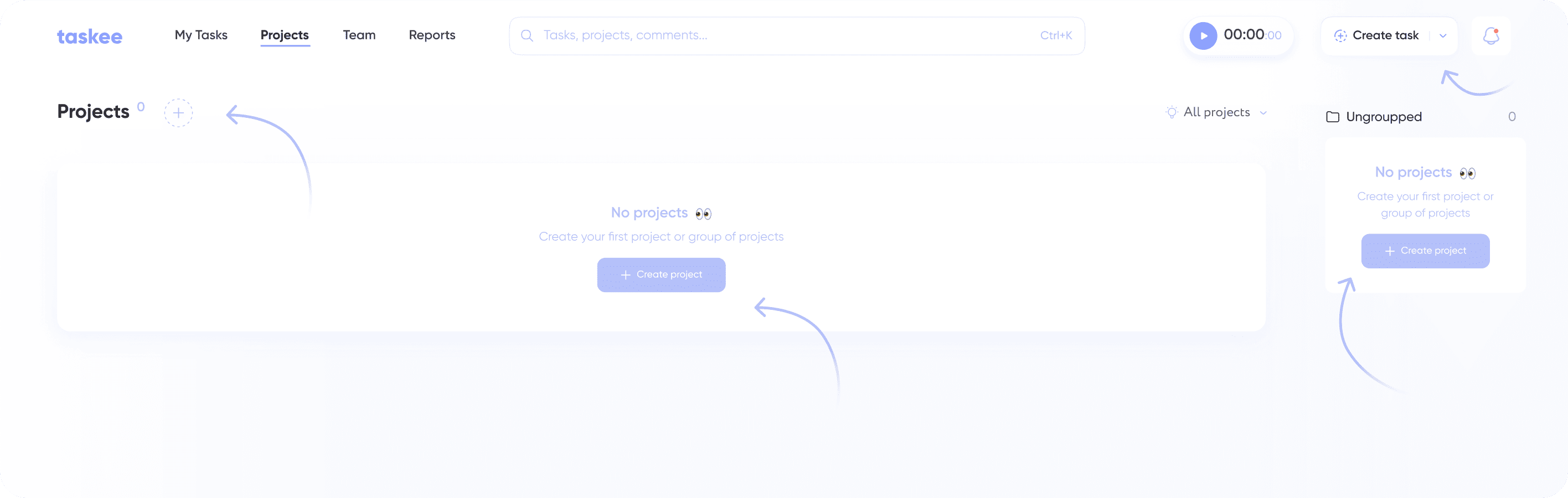
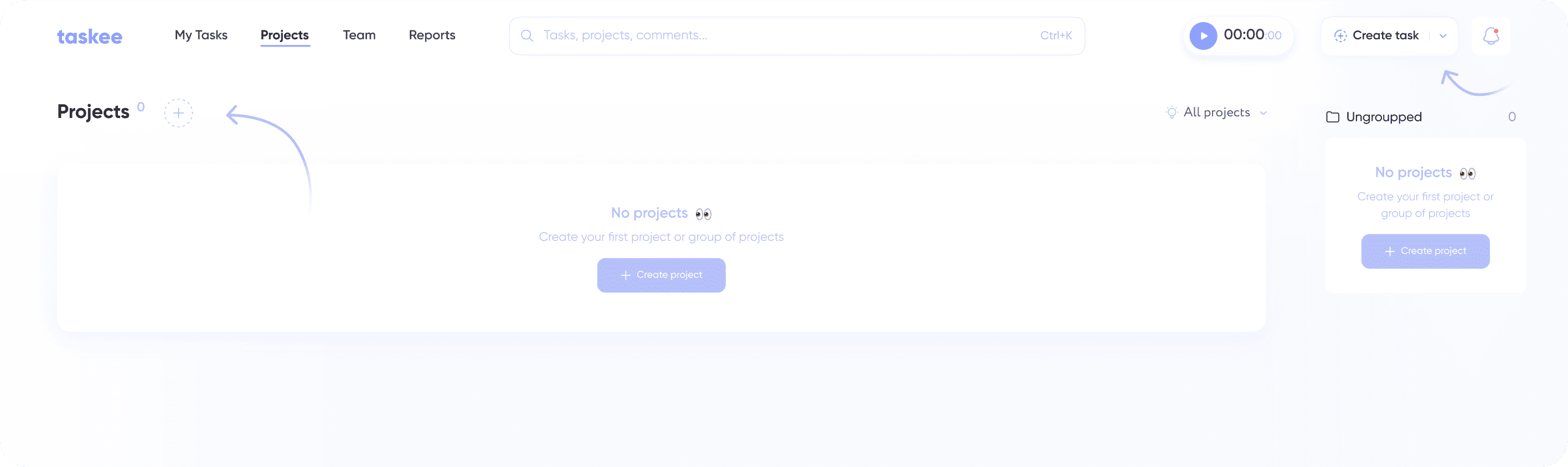
Project-creating options: through the drop-down menu by the Create Task button, choose Create Project. Go to the project page and hit the plus sign near the page heading, choose Create Project on the menu. To create a project within the default group, mouse over the menu item and click plus.
The default project exists so that the first task has somewhere to go. The most common way a work tool fails is that the first person to open it is asked to design a structure before they are allowed to write anything down, and they close the tab. Starting with a project already in place means the first task can be captured in seconds, and the structure can be decided once there is enough real work to decide it from.
The third option — the plus that appears when you hover a group in the menu — is worth remembering, because creating a project directly inside the group it belongs to saves the tidy-up later.
Create project group Link copied!
Project group creating options: through the drop-down menu by the Create Task button, choose Create Project Group. Go to the project page and hit the plus sign near the page heading, choose Create Project Group on the menu. You can name the group and add the projects you want to combine. Projects not belonging to any group will be automatically placed in the No-Group Projects folder for easier search.
The grouping you choose should match the question you ask most often. An agency usually asks “what is happening for this client”, so groups are clients. A product team asks “what is happening in this area”, so groups are products or squads. An internal services team often asks “what is happening this quarter”. There is no correct answer, only the one that matches how your team already talks.
The No-Group Projects folder matters more than it sounds. In tools where an ungrouped item simply does not appear anywhere, things get lost silently; here a project you have not filed yet is still in a known place, so filing is a tidy-up task rather than a recovery operation.
Add people to project Link copied!
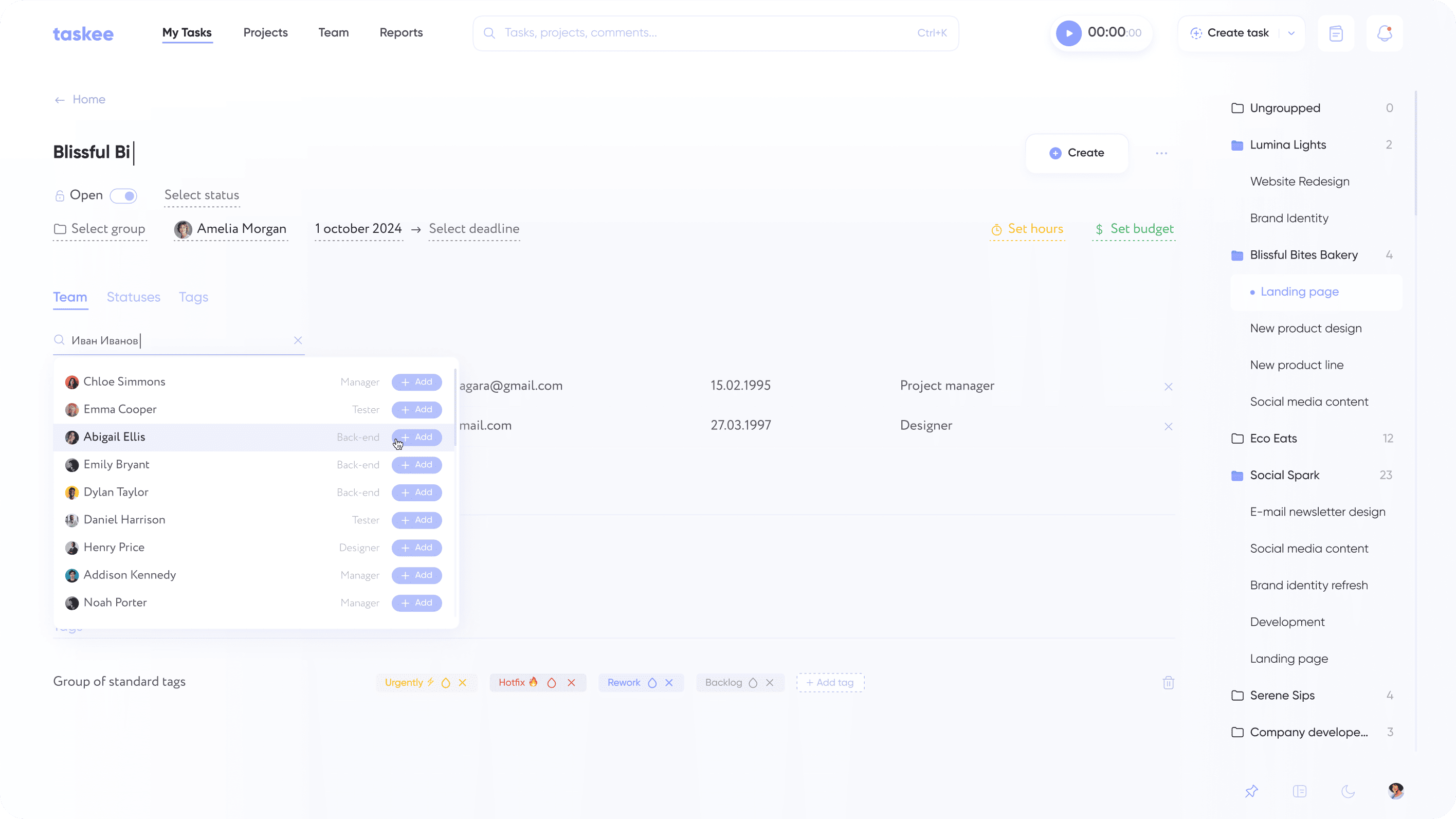
You can add people to both existing and new projects. On the Project Creation or Editing page, in the Team section, you can choose people through search and pop-up window, and then add them to the project.
Being able to add people to an existing project as easily as to a new one is what keeps access from becoming a bottleneck. Teams change mid-project — someone joins, someone covers a holiday, a specialist is pulled in for two weeks — and if that requires an administrator and a ticket, the practical outcome is that people share logins or work outside the tool.
Who is on the project also determines what the per-person views are worth: filtering a board by performer, or splitting a report by employee, only tells you something if the project’s team is actually current.
Access the projects from sidebar Link copied!
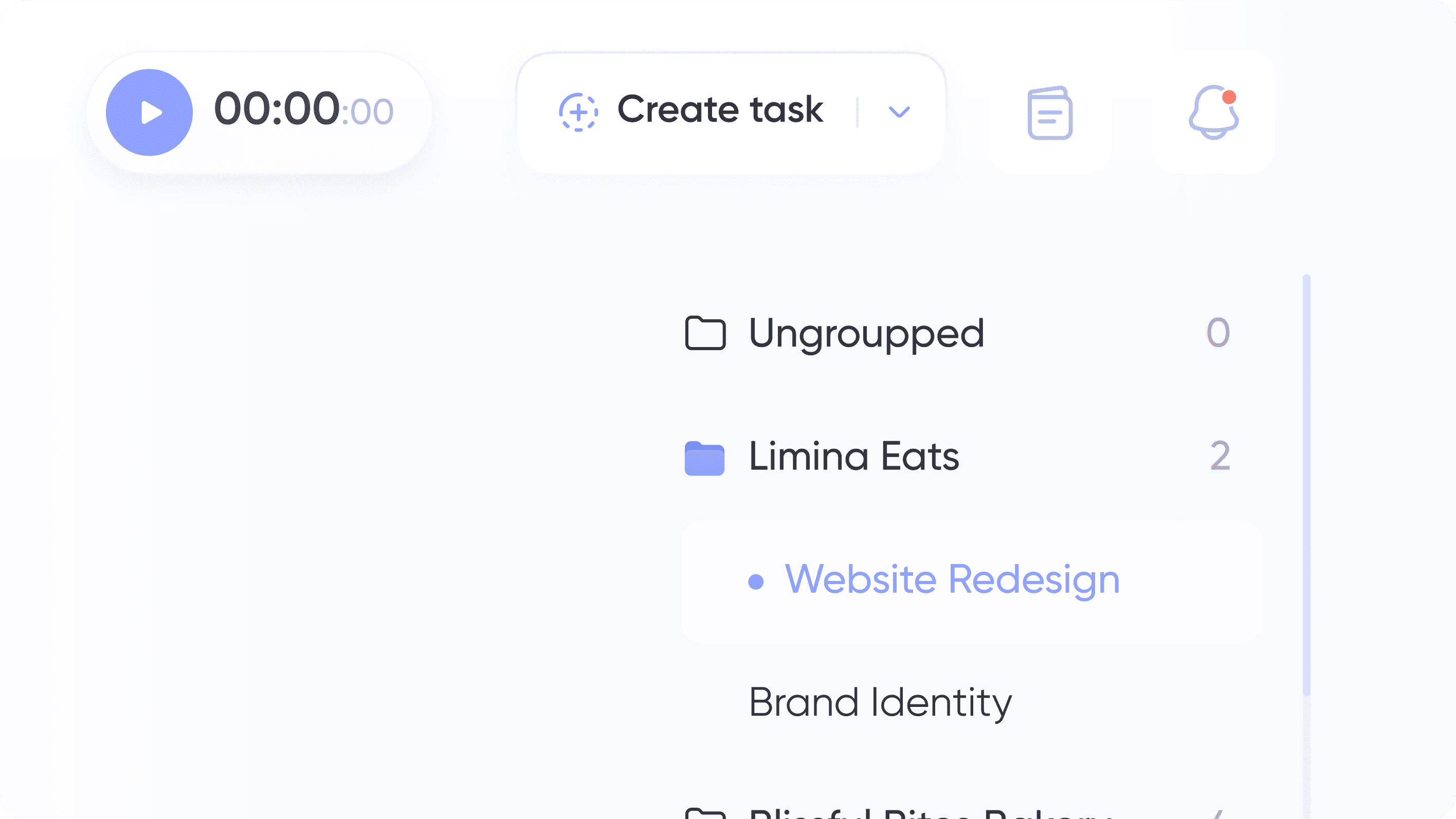
Projects appear on the sidebar after you add them to the company. Projects are collected according to project groups. The list of projects will drop down when you click on the group. You can quickly create a project within a group as well as move projects and groups to organise space according to your needs.
The sidebar is the piece of the interface people look at most, so it is worth arranging on purpose. Collapsing groups you are not working in shortens the list to what is live for you. Moving projects and groups means the structure can follow reality rather than the order things were created in — which matters, because a sidebar that has drifted out of date is the first thing that makes a tool feel like overhead.
Who needs projects and groups Link copied!
The amount of structure worth building depends on how many parallel streams a team runs.
Teams running many parallel client engagements get the most from groups, because the client is the unit of every conversation and every invoice. See agencies, consulting and creative agencies.
Growing companies usually reach the point where a flat list stops working somewhere around ten to fifteen projects, and grouping by department or product is what makes the sidebar usable again. See small and medium business and startups.
Teams with rotating membership depend on adding and removing people from existing projects being routine rather than administrative. See remote teams and support teams.
Individuals and very small teams frequently need none of this. One project, or the default project, is enough — grouping can wait until there is something to group. See freelancers and personal productivity.
Creating a project vs configuring it vs creating a company Link copied!
Three setup steps that sit at different levels.
Creating a company happens once, when you sign up, and it is where users, roles and permissions live. That is team management.
Creating a project — this page — happens whenever a new stream of work begins: the project, its group, its team, its place in the sidebar.
Configuring a project is the ongoing part: deadlines, statuses, tags, notes and the activity record. That is project management, and it is where you go when you need a new status or a new tag group rather than a new project.
After that the work itself is tasks, seen as a list or on a board.
Set up your first project — create a company in Taskee. The number of projects is not what you pay for — see pricing.


