
Kanban Boards for Teams
The Kanban board in Taskee shows every task in a project as a card in a column, and the column a card sits in is the task’s status. Moving work forward is dragging a card one column to the right; nobody updates a status field separately, and nobody has to ask what stage something is at. Columns are yours to arrange: reorder them to match how work actually moves in your team, and hide the ones that are not relevant right now. Filters narrow the board to one person or to a level of readiness, so a board with hundreds of cards can be reduced to the handful that matter in a standup. Zoom controls fit the whole flow on one screen when the columns outgrow the window. This page walks through the board in the interface, who gets the most out of it, and where the board ends and the task and project tools begin.
What a Kanban board is good at Link copied!
A Kanban board is a status field turned into a picture. The same information could live in a list column, but a list makes you read every row to answer the question a board answers at a glance: where is the work piling up.
That question is the reason boards are worth using. When eleven cards sit in review and two sit in progress, the bottleneck is review, and no amount of pressure on the people writing code will change the delivery date. A list will not show you that. A board shows it before anyone has to raise it in a meeting.
In Taskee the board is a view of the project, not a separate place. Every task in the project is on it, and the columns are the project’s statuses — the same statuses used in the task list and in reports. Change a card’s column and the task’s status changes everywhere. This matters because the common failure of board tools is drift: a board that becomes a second source of truth, gradually disagreeing with the list everyone else reads. Here there is one set of tasks and one set of statuses, shown two ways.
Working with the board Link copied!
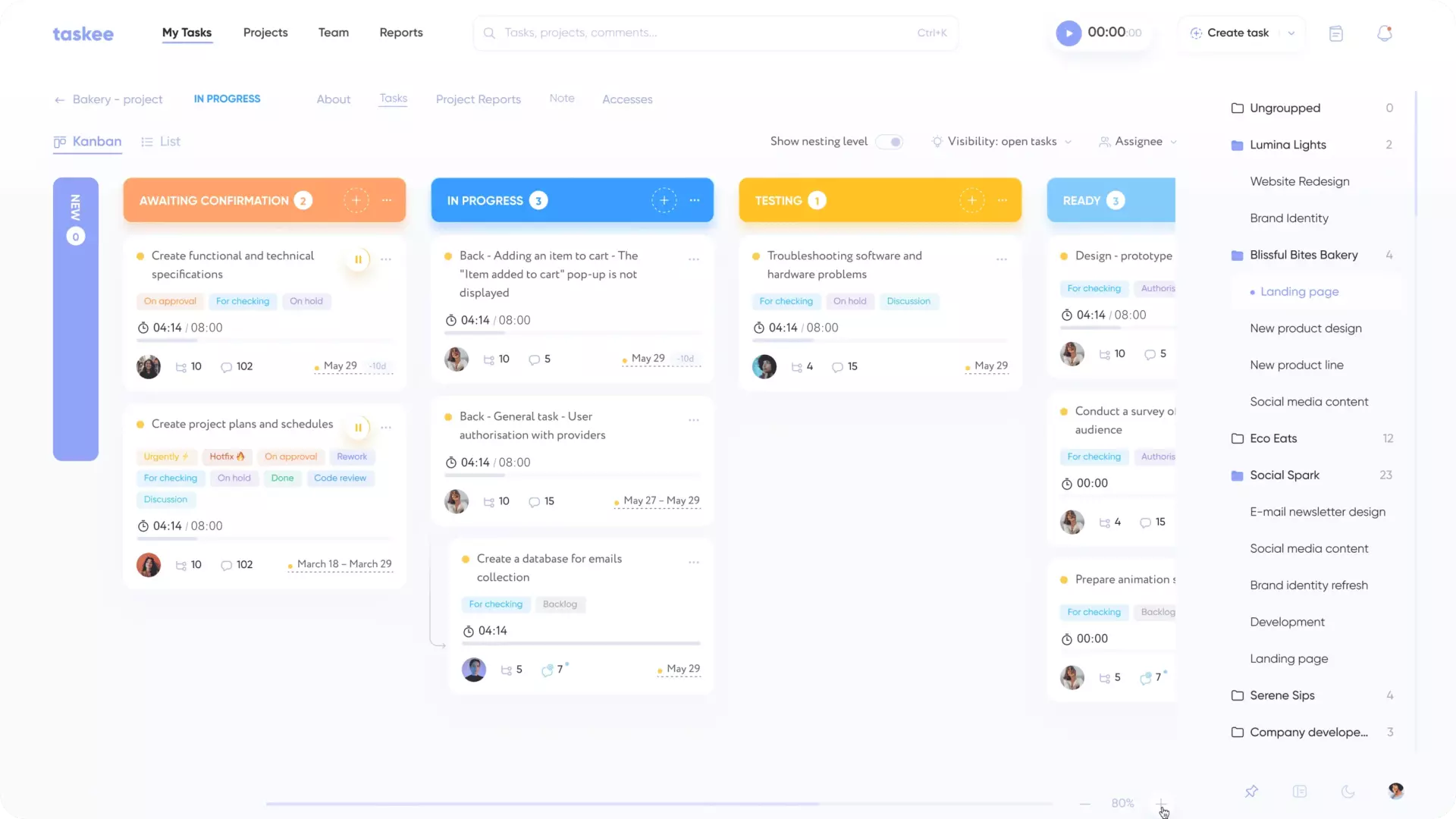
The Kanban board has all the project tasks, distributed into columns according to their status. You can change the column order, hide them and easily move tasks from column to column.
Reordering and hiding columns is what lets one board serve several audiences. A team that has added statuses for design review, code review and staging ends up with a wide board; hiding the columns a particular person never touches turns the same board into a focused workspace without changing anything for anyone else. Column order is worth setting deliberately, because a board is read left to right — the sequence of columns is the statement your team makes about how work is supposed to flow.
Moving a card between columns is the whole status update. That is the point: the cost of keeping statuses accurate drops to a drag, and statuses that are cheap to update are statuses people actually keep current.
Filtering tasks Link copied!
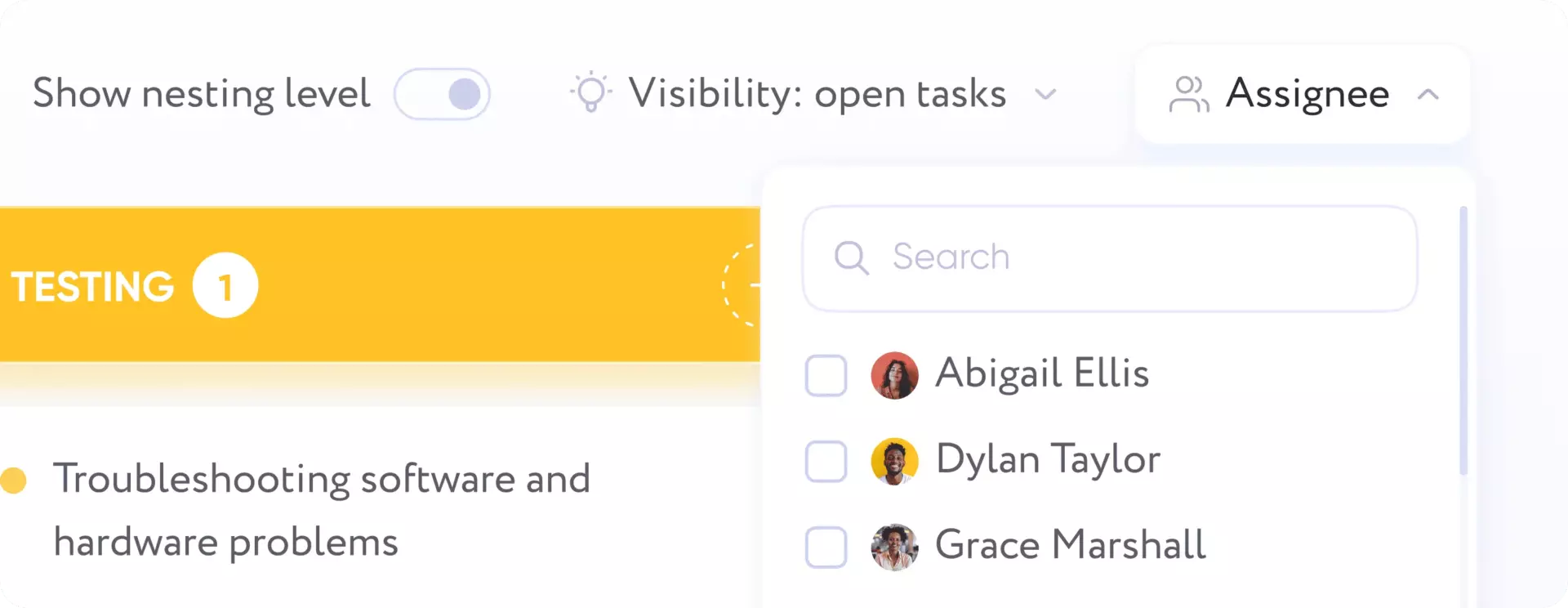
Tasks can be filtered by performer and by their readiness.
Filtering by performer turns the shared board into a personal one: one person’s cards, in their columns, without leaving the project view. Filtering by readiness does the opposite — it collapses the board down to the state you care about, which is how a board with hundreds of cards stays usable in a standup. The two filters are most useful together in a review conversation: one person’s work at one stage is a short, specific list rather than a wall of cards.
Zooming kanban Link copied!
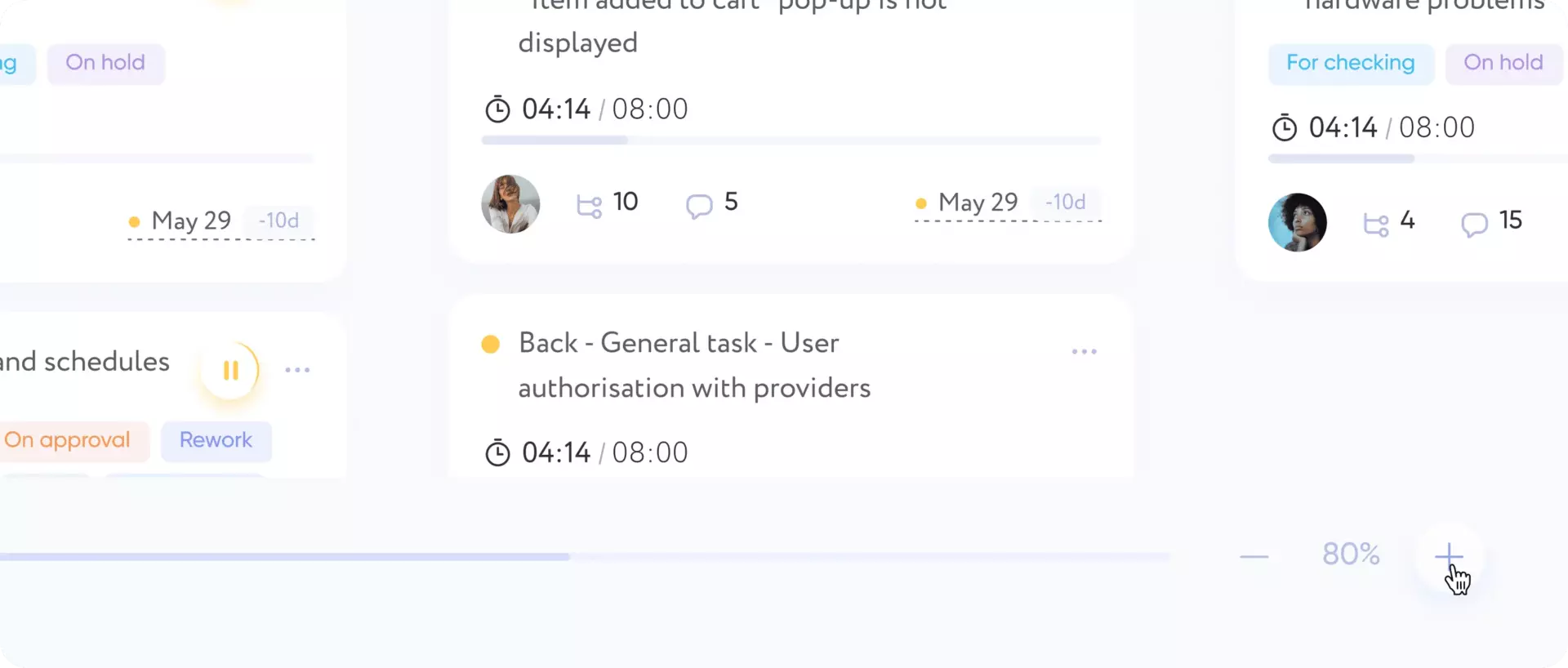
You can zoom your kanban board by the + and – buttons for zooming in and out, respectively. It helps set a convenient display of all columns on your screen.
Zoom is a small control with a specific job: keeping the whole flow visible at once. A board only delivers its main benefit — seeing where work accumulates — when every column is on screen together. Once you have to scroll sideways to reach the last column, you are back to reading a list. Zooming out to fit the flow is what a lead does before a planning conversation; zooming back in is what an individual does when they are working inside one column.
Which teams run on a board Link copied!
Boards suit work that moves through recognisable stages and where the interesting question is flow rather than duration.
Software and product teams were the original case, and it still fits: a backlog, work in progress, review and done are genuine stages with genuine handoffs. See IT teams, engineering and product development.
Creative and marketing teams run on approval chains — draft, internal review, client review, published — and those are exactly the stages that quietly hold everything up. A board makes the queue in front of an approver impossible to miss. See design teams, marketing teams and creative agencies.
Support and operations teams work in a steady stream of incoming items rather than in projects with an end date, and a board is the natural way to see the stream and its backlog. See support teams and operations.
Distributed teams get the most out of it per hour saved, because a board is a status meeting that nobody has to attend. See remote teams.
The board, the task list and the project Link copied!
The board is a view. It is not where tasks are created and not where statuses are defined.
A card on the board is a task, and everything a task carries — assignee, deadline, tags, priority, comments, attachments — lives on the task itself. Creating work, assigning it and discussing it is described under task management.
The columns come from the project’s statuses, which are configured under project management. A new project starts with standard statuses; renaming them or adding your own is what shapes the board. If your board has the wrong columns, the fix is in the project settings, not on the board.
The board also has nothing to say about how long anything took. That is time tracking and reports. A card can sit in one column for a week while almost no work happens on it — the board shows the position, the timer shows the effort, and a team that wants both questions answered needs both.
Put your first project on a board — create a company in Taskee. The board is part of the single free plan — see pricing.


